Launching XMRig AUT:
Before you can launch XMRig AUT, you may need to enable execute permissions for the file. To do that run this command:
chmod +x xmrig_automation_utility_toolAUTV1.2.sh
To launch XMRig AUT, run this command:
sudo ./xmrig_automation_utility_toolAUTV1.2.sh
Selecting Options:
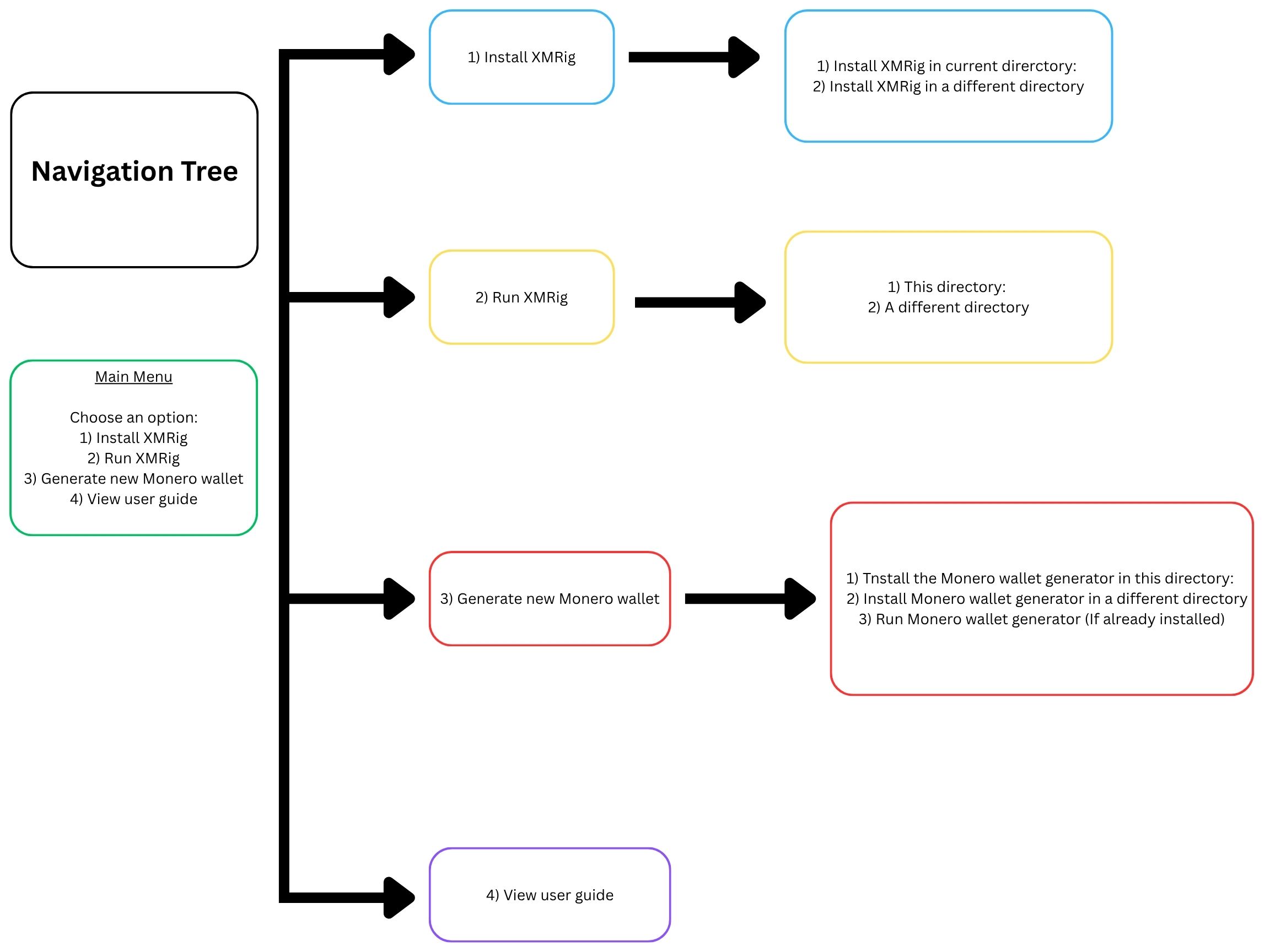
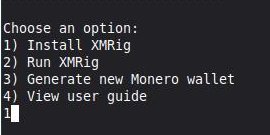
To select the option you want, enter the designated number that is associated with that option. For example, if you want to Install XMRig, enter "1" and press enter.
Yes or No Prompts:
When encountering a yes or no prompt, enter "1" for yes and "2" for no. For example, if you want to save your wallet key to a file so you can view it later, enter "1" for yes.

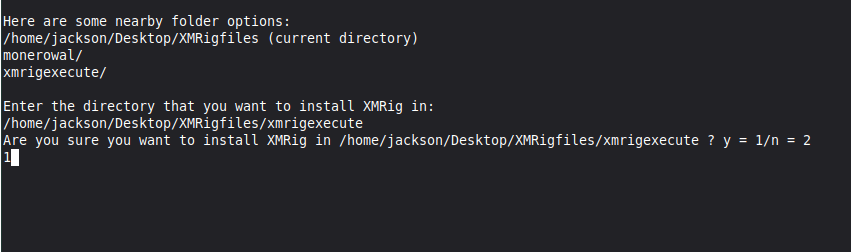
Entering the directory to install XMRig or Monero wallet generator:
For ease of use, XMRig AUT can find nearby directories to install applications. You may enter the directory that you would like the applications to be installed in.
For example if you want to install XMRig, depending if your current directory has sub folders within it, XMRig AUT will display these sub folders as options to install XMRig in.